 Click to zoom
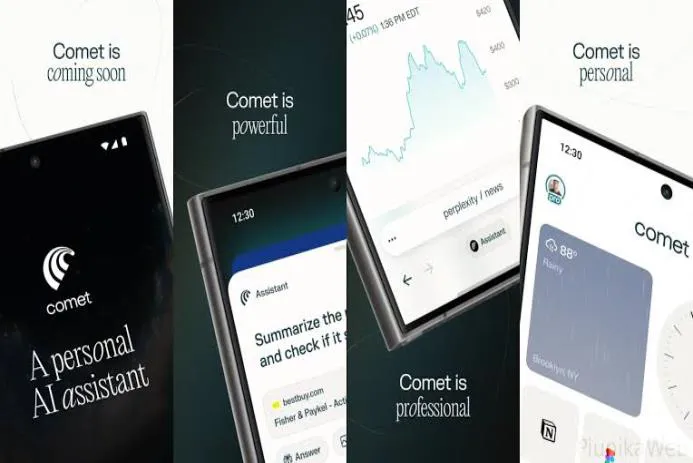
Introducing Comet for Android: an AI-native browser redesigned for mobile
Comet began as one of the first genuinely AI-native browser experiences on desktop — but rebuilding it for Android changed things in a surprisingly good way. Instead of cramming desktop controls onto a tiny screen, the team rethought interactions so the assistant, tabs, and voice controls actually feel natural in your hand. That small design decision makes a big difference when you’re moving, multitasking, or just short on time.
Why an AI-first browser matters on mobile
Phones are the place for quick questions: comparing specs between meetings, hunting a coupon on the train, or finishing a mini research task during a coffee break. The truth is, an AI-powered mobile browsing experience shows value in those small, repeatable moments — when you want a crisp summary, a fast side-by-side comparison, or a way to act on information without switching apps. That’s exactly where a mobile AI assistant browser changes the flow and saves you time.
It’s not just buzz. This direction mirrors broader shifts in Generative AI Trends 2025: Scalable LLMs, Data Strategies & Enterprise Adoption, where responsiveness and context-aware integration are core to useful tools.
Key benefits of Comet for Android
- Assistant that stays in context: Tap the Comet Assistant to ask follow-ups, hand off quick tasks, or get summaries. It even shows reasoning steps and the actions it plans — so you’re not guessing what it did or why.
- Chat with your tabs (voice-first): Use voice mode to run a conversational search on mobile that looks across open pages. I’ve used it to survey three review pages and get one consolidated answer — faster than toggling tabs. Think low-latency voice agents, but in your browser.
- Cross-tab summarization AI: Summarize content across multiple tabs — not just the active page — which is huge for rapid research or fact-checking while you’re out and about. This is the practical side of agentic browsing workflows: plan, reflect, then act.
- Native ad blocking and tracker protection: Built-in ad blocking keeps pages readable and reduces pop-ups. You can whitelist creators you want to support — practical, respectful, and less noise overall.
- Context-aware recall: Comet remembers what you’ve been working on so answers better fit your current task. It’s like a little memory for your browsing session — convenient, but you can control how much it remembers.
How Comet’s assistant changes everyday tasks
Let me share a few real moments — these are exactly the things that made me stop switching tabs so often and start relying on the assistant more.
- Rapid research: Standing in a store comparing budget phones? Open three review pages, ask Comet to summarize battery life and camera differences, and get a concise side-by-side without jumping between tabs — classic how to use Comet on Android to summarize multiple tabs.
- On-the-go shopping: Browsing deals while juggling bags? Ask the assistant to hunt for coupon codes, check return policies across tabs, and produce a short checklist of the best buy. Voice mode handles this while your hands are full.
- Study and learning: Reading articles for a class or prepping a quick briefing? Comet can synthesize main arguments into one paragraph or bullet notes you can copy or share — handy when you need to turn reading into action.
Privacy, control, and transparency
Comet aims to be proactive, not creepy. The assistant runs natively, surfaces planned actions, and gives easy ways to step in or stop it. Native ad blocking and tracker protection also improve readability and reduce background noise — so you can focus. And if you worry about memory or context usage (you should), the privacy controls make what the assistant remembers explicit and editable.
From a governance angle, agent-like behavior raises questions about responsibility and traceability. Comet’s transparency features help — but it’s worth thinking through how much autonomy you want to grant any assistant. (Short version: you’re in control.)
Design choices: mobile-first, not a desktop cram
This is where the app shows care: rather than transporting desktop metaphors to a small screen, Comet refactors interactions for touch and voice. Expect:
- Touch-friendly controls that stay compact and readable
- Voice-first browsing optimized to work even in noisy places
- An assistant UI that surfaces reasoning steps and suggested actions without covering the page
How to get started
Install Comet for Android, sign in, and the browser uses your session context across tabs. Try these quick tasks to get the hang of it:
- Open three tabs on a topic and ask: "Summarize the key differences across these pages." (classic: how to use Comet on Android to summarize tabs).
- Tap voice mode and say: "Show me the cheapest option with 5G and at least 4000mAh battery." — the assistant searches all open tabs.
- Whitelist a trusted site to support creators while keeping other sites tidy.
One hypothetical: a day with Comet
Picture this: planning a weekend trip. Morning — you open train schedules, a weather site, and a packing list article. Instead of swapping apps you ask Comet: "What should I pack if it’s rainy and 50–55°F, and what’s the earliest train I can take?" In seconds you get a tailored packing checklist and the best train time. Small convenience, but those moments stack up — and honestly, that’s the whole point.
FAQ-style notes (people also search)
- What is the best AI browser for Android? If you value cross-tab summarization, voice-first search, and a privacy-conscious ad blocker, Comet is a strong candidate — especially in 2025 when these features matter more.
- Can an Android browser summarize multiple tabs? Yes — Comet’s cross-tab summarization AI is made for that exact use case.
- Does Comet block ads and pop-ups? It has native ad blocking and tracker protection, plus an easy whitelist for creators.
- Is Comet safe and private on Android? Comet emphasizes transparency: the assistant shows planned actions, and privacy controls make memory and context explicit.
- How to switch from Chrome to Comet on Android? Install Comet, sign in, open your common tabs, try the assistant, and gradually make it your daily browser. (Step-by-step feels less scary than it sounds.)
Final thoughts: follow your curiosity
Good questions lead to useful answers. Comet’s approach — conversational search, context-aware recall, and native ad blocking — nudges you to ask follow-ups and dig deeper without the friction of app-hopping. If you care about speed, fewer distractions, and an assistant that helps you act on what you find, try Comet for Android. It’s small, but it changes how you browse.
Install Comet for Android today and carry a capable, private personal assistant in your pocket — practical, quick, and mindful by design.
Sources & further reading: See the Comet product notes and announcement for background on the assistant model, cross-tab summarization, and native ad blocking approaches.
Thanks for reading!
If you found this article helpful, share it with others