 Click to zoom
Top 5 AI Christmas photo generators (2025): quick overview
| AI Tool | Best For | Strengths | Limitations | Ideal User |
|---|---|---|---|---|
| CapCut Web (Seedream 4.0) | Photorealistic, high-resolution holiday portraits | 4K exports, multi-image fusion, realistic lighting, print-ready, background replacement | Needs detailed prompts for best results | Families wanting studio-quality printable cards |
| Aragon AI | Custom outfits, props, personalized scenes | Fast, good customization, solid face consistency | Needs clean reference photos; artifacts in busy scenes | People wanting tailored but quick holiday visuals |
| Fotor | Stylized images (cartoon, anime, 3D, vintage) | Easy UI, many holiday themes, fun styles | Photorealism not as strong; group shots inconsistent | Users creating playful, stylized Christmas cards |
| LightX | Fast mobile edits & one-tap filters | Great background removal, instant snowfall & light effects | Some filters locked behind premium; occasional glitches | People creating quick social media holiday posts |
| Easy-Peasy AI | Simple prompts & commercial-safe outputs | Commercial-use allowed, many templates, beginner-friendly | Lower resolution on free tier, less realistic results | Small businesses making holiday prints or ornaments |
I spent time testing several tools and noted what each does best, plus the trade-offs you’ll run into. Below are my quick takes so you can pick the right one fast.
1) CapCut Web — Best for photorealistic, high-resolution holiday shots
CapCut Web’s AI design (powered by Seedream 4.0) is impressive for photorealistic Christmas photos. It handles text-to-image prompts, multi-image fusion for group portraits, and one-click background replacement — and you can output large files (up to 4K) suitable for print. If you want printable 5x7 or larger cards without a studio, this is often the simplest route.
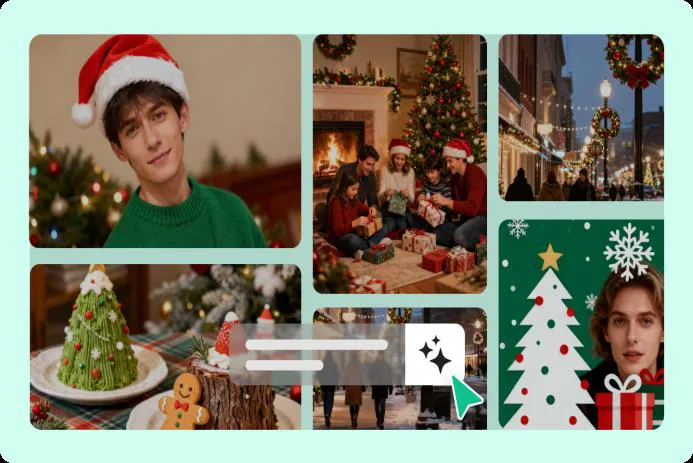
Bring holiday magic to every photo: AI Christmas photo makers explained
Worried you’ll miss capturing seasonal moments because of busy schedules, bad weather, or fussy kids? I’ve been there — juggling chaos while the perfect light disappears. The truth is a single well-crafted image can warm a whole winter, and these days AI Christmas photo generators let you turn ordinary selfies into polished, shareable holiday images in seconds — from cozy fireside portraits to whimsical elf makeovers. They’re not magic, but they’re the next best thing.
Why use an AI Christmas photo generator this season?
- Save time and effort: No more wrestling with rented backdrops, endless retakes, or complicated edits. A good AI holiday portrait maker can produce a finished image in minutes, freeing you to actually enjoy the party.
- Cost-effective alternative to studio shoots: For most families, it’s cheaper than paying a photographer, renting a studio, or buying matching outfits.
- Endless creative control: Swap backgrounds, add ornaments, apply snowfall or cinematic grading — all with simple prompts. You get the vibe you want without starting from zero.
- Make unique holiday cards: Instead of cookie-cutter templates, craft bespoke scenes and greetings tailored to each recipient — yes, even Aunt June will notice.
- Social-ready exports: Generate the exact aspect ratio and resolution for Instagram, Facebook, or printable cards — and use AI upscaling for 300 DPI prints when you need them.
Top 5 AI Christmas photo generators (2025): quick overview
I spent time testing several tools and noted what each does best, plus the trade-offs you’ll run into. Below are my quick takes so you can pick the right one fast.
1) CapCut Web — Best for photorealistic, high-resolution holiday shots
CapCut Web’s AI design (powered by Seedream 4.0) is impressive for photorealistic Christmas photos. It handles text-to-image prompts, multi-image fusion for group portraits, and one-click background replacement — and you can output large files (up to 4K) suitable for print. If you want printable 5x7 or larger cards without a studio, this is often the simplest route.
How to create a festive image in CapCut Web (free method)
- Step 1 — Enter a prompt or upload a reference.
Sign in to CapCut Web, open the "AI design" tool, and either type a detailed prompt such as "A cozy family in matching knit sweaters around a glowing Christmas tree inside a snow-dusted cabin, warm golden lighting, photorealistic" or upload a clear family selfie as a reference and click "Send." Specifics matter — mention camera style (35mm portrait), lighting (soft rim light), textures (wool sweaters), and mood.
- Step 2 — Generate and refine visuals.
Use follow-up prompts like "add twinkling lights" or "soft film grain" and take advantage of built-in tools for color correction, multi-image fusion (to preserve faces in group shots), and AI upscaling for print-quality 300 DPI exports.
- Step 3 — Download and share.
Choose resolution and format (PNG/JPEG), download, or export directly to social profiles. If you need print, upscale first and check the 3:2 or 5x7 aspect ratio settings.
CapCut Web strengths:
- Seedream 4.0 text-to-image engine for realistic results.
- Multi-image fusion is useful for preserving faces in group holiday photos.
- Built-in holiday card templates, festive fonts, and export flexibility.
- Quality controls: AI upscaling for print, background replacement, and facial retouching.
2) Aragon AI — Fast, customizable holiday scenes
Aragon AI is quick and gives you good control over outfits, props, and scene style. I like it for remote families who want personalized cards without fuss. It’s research-driven and usually fast, though you’ll often need a couple clean reference shots for best results.
Pros: Speedy generation, deep customization of outfits and props. Cons: Needs specific references for complex group scenes and can produce artifacts if you try to do too much at once.
3) Fotor — Best for style variety (cartoon, vintage, 3D)
Fotor shines if you want stylistic play: 30+ holiday styles including 3D cartoon, anime, and vintage. It’s beginner-friendly — one-click generation and editing tools make it great for playful cards or ornament mockups rather than strict photorealism.
Pros: Big style library, very easy UI. Cons: Advanced features and unlimited generations usually sit behind the Pro subscription; group blending can be hit-or-miss.
4) LightX — One-tap seasonal filters and quick edits
LightX is built for speed. One-tap snowfall, twinkling lights, and solid background removal across mobile and web make it perfect for last-minute social posts. If you need something fast for an Instagram Story, this tool gets you there.
Pros: Quick filters and good background removal. Cons: Some premium filters are paywalled and complex uploads can glitch.
5) Easy-Peasy AI — Simple prompts, commercial-use friendly
Easy-Peasy AI is as it sounds: fast prompts and straightforward outputs. It’s notable because its free tier often includes a commercial-use license — useful if you’re selling holiday prints or ornaments. Resolution and photorealism are limited compared to CapCut, but for small craft businesses it’s worth a look.
Pros: Easy prompts, many styles, commercial-use allowance on some free plans. Cons: Free downloads may be low-res and group shots may not be fully photorealistic.
How to choose the best AI Christmas photo tool for you
Ask yourself: Are you making cards, social posts, or printable portraits? How much photorealism do you want? Here’s a short checklist to guide the decision.
- Primary use: Cards and prints need high resolution and AI upscaling; social posts need correct aspect ratios and fast exports.
- Ease of use: Web apps with templates are faster for non-designers — mobile-first apps help if you’re working from your phone.
- Customization: Prompt controls, background replacement, and multi-image fusion matter for convincing, tailored looks.
- Privacy and security: Prefer platforms with transparent image-handling and explicit privacy policies.
- Budget: Watch free tier limits, watermark rules, and costs for high-res or commercial-use licenses.
Pro tips to make your AI Christmas photos look real and professional
- Write detailed prompts: Include mood, lighting, camera viewpoint, textures, and props — e.g., "warm candlelight, 35mm portrait, soft bokeh, cinematic color grade, subtle film grain." Prompt engineering for photorealism matters more than you’d think.
- Use high-quality references: Clear, well-lit photos help the model preserve faces and poses, especially in group holiday photos where multi-image fusion is needed.
- Iterate in small steps: Apply one change at a time (lighting, then background) to reduce artifacts and keep control over the result.
- Mind aspect ratios & upscaling: Export square (1:1) for Instagram, 4:5 or 9:16 for stories, and use AI upscaling to reach 300 DPI for prints like 5x7 cards.
- Check privacy terms: Confirm the service doesn’t retain or reuse your images without consent — read the privacy policy and image-handling clauses.
Mini case study: How I made a family card in 15 minutes
Last December I had three kids, a sleepy cat, and five minutes before a holiday Zoom — classic chaos. I snapped a quick living-room selfie, uploaded it to CapCut Web, and prompted: "family of five in matching wool sweaters, warm fireplace, falling snow outside window, soft golden rim light, photorealistic." Two quick refinements — adding twinkling lights and upscaling to 300 DPI — and I had a printable 5x7 card. It saved us last-minute panic and honestly looked better than the rushed in-person shoot. Small wins like this are why combining a short reference photo with a specific prompt works so well.
Privacy & ethics: What to watch for when uploading family photos
AI tools are transformative, but use caution — especially with family photos.
- Read the platform’s privacy policy closely — check whether images are retained, reused, or sold.
- Avoid services that publish your photos publicly without explicit consent; delete your uploads after generation if possible.
- Blur or avoid extremely sensitive personal details in images you share widely.
- If you plan to sell prints, double-check commercial-use license terms — not all free tiers allow commercial use.
Examples of holiday photos you can create
- Cozy fireplace family portraits with warm film grain and cinematic color grading.
- Playful elf-themed headshots with oversized props and bright, cartoon styles.
- Winter-wonderland pet photos with scarves, falling snow, and soft rim lighting.
- Custom ornament mockups and printable greeting cards ready for 5x7 prints.
Conclusion: Should you use an AI Christmas photo generator?
If you want an affordable, fast way to create polished holiday images — especially for cards and social sharing — AI generators are a powerful option. For photorealism and high-res prints, CapCut Web (Seedream 4.0) is often the best pick. If style variety matters, try Fotor. Remember: refine prompts, use clean reference photos, and pick platforms with clear privacy and commercial-use terms. And yes — most of us will still keep that one real family snapshot on the mantel. These tools just help you make the rest look great.
FAQs
What’s the best AI Christmas card generator in 2025?
For photorealistic results and flexible editing, CapCut Web is a top pick thanks to Seedream 4.0 and robust upscaling. If you want stylistic variety (cartoon or vintage), Fotor is a strong alternative.
Can I add ornaments and decorations to any photo?
Yes — prompt-driven generators like CapCut Web let you ask for "add sparkling ornaments and warm fairy lights to the tree" and apply those elements realistically to existing scenes. Just iterate slowly to avoid artifacts.
How do I keep my family photos private?
Use reputable providers with explicit image-handling and privacy policies, delete uploaded files after generation if the platform allows it, and avoid posting originals on public galleries.
Further reading:
Microsoft Launches MAI-Image-1: A Fast, Photorealistic In-House AI Image GeneratorNano Banana Pro: Gemini 3 Pro Image Model for 2K & 4K Assets
Generative AI Trends 2025: Scalable LLMs, Data Strategies & Enterprise Adoption
The Hidden Environmental Cost of Deepfake Videos: What Every Creator Should Know
Does ChatGPT Store Your Data? Privacy, Retention & Safety (2025)
OpenAI’s Atlas Browser: Powerful AI, Big Convenience — and Serious Security Risks
Also — if you’re unsure which prompts work, search "What prompts make AI photos look like real studio portraits?" or "How to avoid AI artifacts in group holiday images?"; those search queries will pull up community-tested tips fast.
Thanks for reading!
If you found this article helpful, share it with others